Install App to Edge Device
Most of this chapter has already been covered by the video in the Welcome tab. This is a more detailed step-by-step guide.
Setup MQTT User correctly
For this, you need access to the Industrial Edge Management and the rights to create and edit MQTT users.
To setup the user, go to the sidetab "Data Connections" in the IEM and choose the Databus.
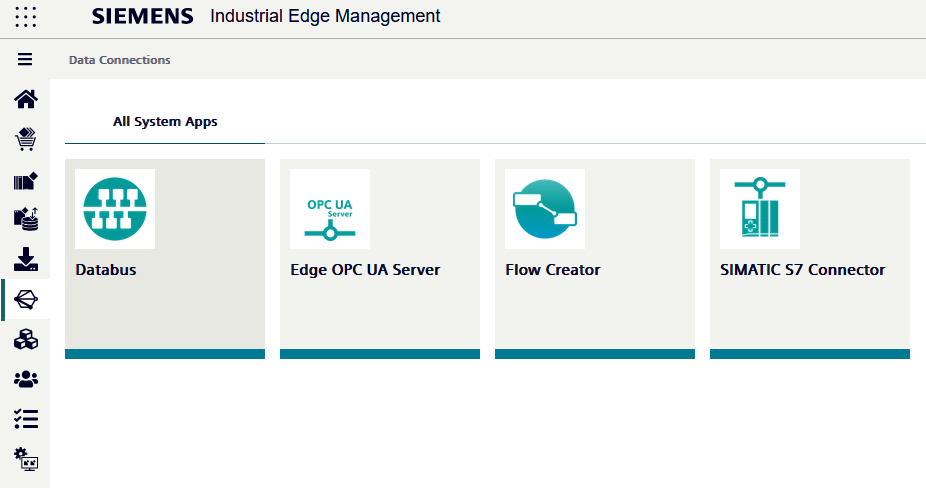
Launch it on your Edge Device.
Now, all your MQTT users with their topics are displayed. If there are no topics, you have not created any yet.
Here you can add a new User with a topic it should subscribe to, its username, password, and the permissions it has.
To make sure you can read and write to your database, pick "Publish and Subscribe".
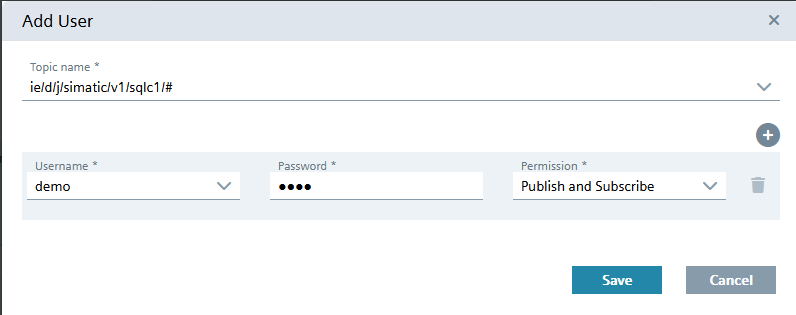
Save the user and then add the rest of your needed topics on the right, making sure the correct user is selected.
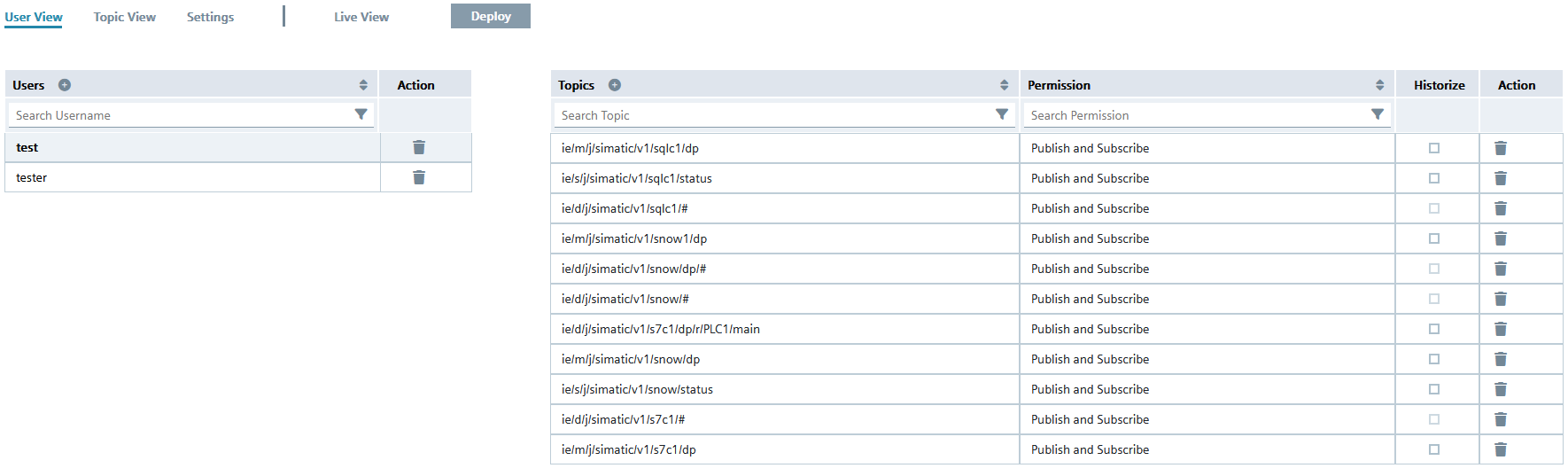
If you have multiple connectors available, you can create metadata-, status-, and datatopics for every one of them.
Install App to Edge Device
Depending on which of our connectors you install, you will see a different app icon in the Industrial Edge.
Open the Common Configurator. Here you should see your installed Connectors.
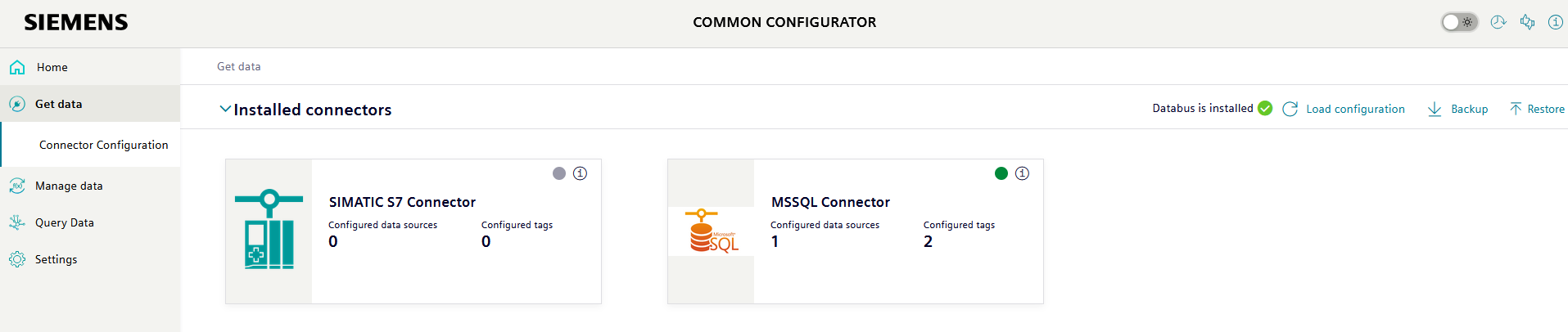
If the dot on the right side of the connector box is green, it is activated and connected. If it is grey, it is inactive.
If the dot is red, then there is an error with the connection or the connector.

If the connector has a datasource with tags, it is shown here. Otherwise, it will be empty and you cannot deploy it.
You can create a new datasource following the directions in the specific folders. Then you can create tags for the datasource.
MSSQL Datasource
MySQL Datasource
Oracle Datasource
PostgreSQL Datasource
After creating the datasource you can deploy the configuration to the connector using the Deploy button in the right upper corner.